Ultimate Cursor is built around a single primary mode per configuration: under Ultimate Cursor → General Settings, you choose one approach from Select Cursor Type. Below is how each card works and where Pro expands what you can do.
General Settings and Select Cursor Type
- Open Ultimate Cursor from the WordPress admin menu.
- Stay on the General Settings tab (the companion tab Multiple Cursors is labeled PRO).
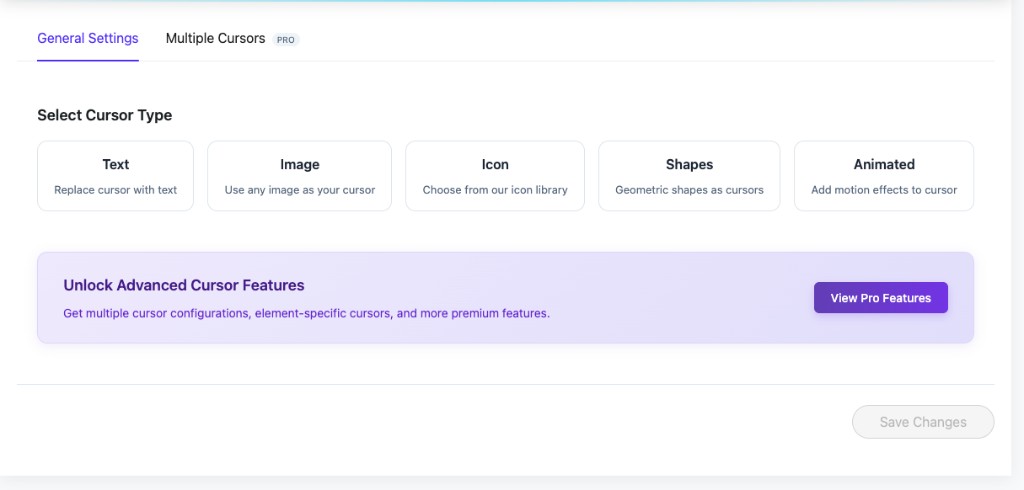
Under Select Cursor Type, five cards appear in a row. Click one to use that cursor style site-wide according to Apply Cursor On (for example entire site vs scoped rules). The screenshot shows the labels and blurbs shown in the admin:
Text
Description in admin: Replace cursor with text.
Use readable words or abbreviations instead of an arrow—for example branding, cues like “drag,” or minimalist labels. You usually set Cursor Text, colors, spacing, and related options inside Customize Your Cursor → Cursor Type and Style after picking this mode.
See Text Cursor for a full tutorial.
Image
Description in admin: Use any image as your cursor.
Upload or pick an image asset and use it as the pointer artwork. Fits logos, thumbnails, or hand-drawn graphics when you want a non-text, non-shape look.
Deep dive: Image & Icon Cursors.
Icon
Description in admin: Choose from our icon library.
Select from built-in glyphs without maintaining image files—good for consistency and quick experiments.
Same guide as images for many controls: Image & Icon Cursors.
Shapes
Description in admin: Geometric shapes as cursors.
Circles, squares, and similar shapes keep the UI clean and lightweight. Useful when you want something custom but simpler than icons or uploads.
Learn more in Shape Cursors.
Animated
Description in admin: Add motion effects to cursor.
Adds motion-centric presentation—paired with tuning in style and animation options for more expressive sites.
Cover effect-specific settings in Animated Cursors and Particle Effects when you need sparks, trails, or bursts.
Multiple Cursors Pro and Upgrade Banner
The Multiple Cursors tab (with the PRO badge) is separate from picking one card on General Settings. It unlocks setups like multiple cursor configurations, element-specific behavior, and other premium perks.
The lavender banner—“Unlock Advanced Cursor Features” with short copy about multiple configurations and element-specific cursors—links to broader Pro marketing via View Pro Features.
For Pro-only workflows after you upgrade, Multiple Configurations and Element Targeting are logical next reads.
Save and Detailed Guides
After you change the active type or tweak Customize Your Cursor, finish with Save Changes so the front end updates (the control may appear disabled until something changes).
Already comfortable with types? Continue with Quick Setup for the full accordion flow and preview pane, or open General Settings for global behavior and scope options.