By the end of this page, you'll have a custom image or icon replacing the default mouse pointer, aligned exactly where you want it.
Applies to Ultimate Cursor 2.3.1+.
When to use Image or Icon
Both types replace the pointer with visual artwork instead of text or a shape. Use Image when you have your own asset — a logo, product thumbnail, or hand-drawn graphic. Use Icon when you want a quick, consistent result from the built-in icon library without managing image files.
Pick either from Ultimate Cursor → General Settings → Select Cursor Type.
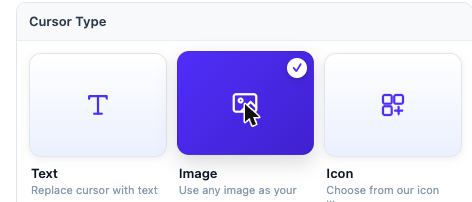
Setting up an Image cursor
- Choose the Image card under Select Cursor Type.
- Open Customize Your Cursor → Cursor Type.
- Click the image field and upload or select an image from the Media Library (
imageUrl). - Set Image Size (
imageSize, default 50px) to scale it.
Setting up an Icon cursor
- Choose the Icon card under Select Cursor Type.
- Open Customize Your Cursor → Cursor Type.
- Pick an icon from the built-in library (
cursorIcon). - Set Image Size (
imageSize, default 28px for icons — smaller than the image default since icons are simpler shapes).
Sizing and border
Both types share the same border controls as other cursor types:
| Field | Type | Notes |
|---|---|---|
imageBorderStyle | enum | none, solid, dotted, dashed, double, groove |
imageBorderColor | color | border color |
imageBorderWidth | number | border thickness |
Hotspot alignment (Pro)
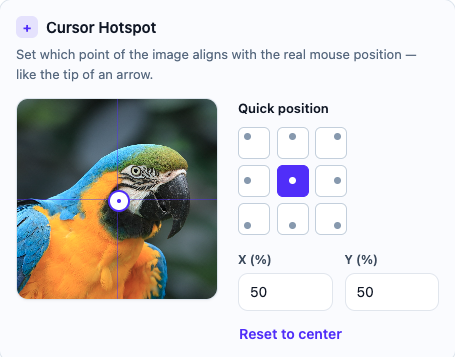
PRO By default the cursor's center is what tracks your mouse position. The hotspot control lets you pick which point of the image/icon tracks instead — useful for pointer-shaped icons where the tip, not the center, should sit under the click point.
Pick from a 3×3 quick-position grid (corners, edges, or center) directly on a live thumbnail of your image, or set exact imageHotspotX/imageHotspotY percentages by hand. On the free plan this control is locked; upgrading unlocks it immediately without re-saving your image.
Save & preview
Click Save Changes, then move your mouse over the live preview pane, and confirm on the frontend. If the image doesn't appear, check Common Issues — the most frequent cause is an unsaved change or a scope rule excluding the current page.