By the end of this page, an animated background effect will be running behind your site's content.
Applies to Ultimate Cursor 2.3.1+.
What Background Effects are
Separate from cursor effects, Ultimate Cursor can render a full-page animated background — particles or light effects that sit behind your content. This lives on its own Background tab in the admin, independent of whatever cursor type you've chosen.
Enabling a background
- Go to Ultimate Cursor → Background.
- Toggle Enable Background (
enabled) on. - Optionally name the configuration (
backgroundName).
Choosing a type
Two base types are available, both free:
- Antigravity — floating particles with configurable shape, color, and count. See Antigravity Background.
- Light Pillar — a glowing vertical light effect. See Light Pillar Background.
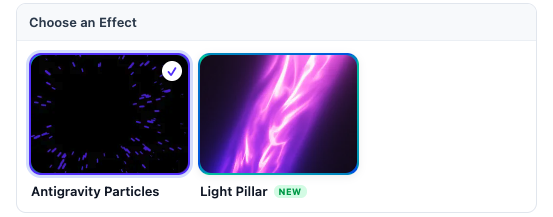
Shared display settings
These apply regardless of which type you pick:
| Field | Type | Default | Tier |
|---|---|---|---|
backgroundColor | color | #0a0a0a | free |
zIndex | number | -1 | PRO |
opacity | number | 1 | PRO |
position | enum | fixed | PRO |
On the free plan, zIndex/opacity/position stay at their defaults and their controls aren't shown — the background still renders, just without layering or opacity fine-tuning.
Scope
Like cursors, backgrounds support scoping: entire-website is free; specific-pages and css-selector scope are PRO. See Targeting & Conditional Logic for the matching rules (they're shared with cursor scoping).
Multiple background configurations (enableMultipleBackgrounds) are also PRO — see Multiple Configurations.